Archive Browsing & Extraction
Archives are point-in-time snapshots created by each backup run. Assimilate lets you browse, inspect, and extract files from any archive directly in the web UI.
Viewing Archives
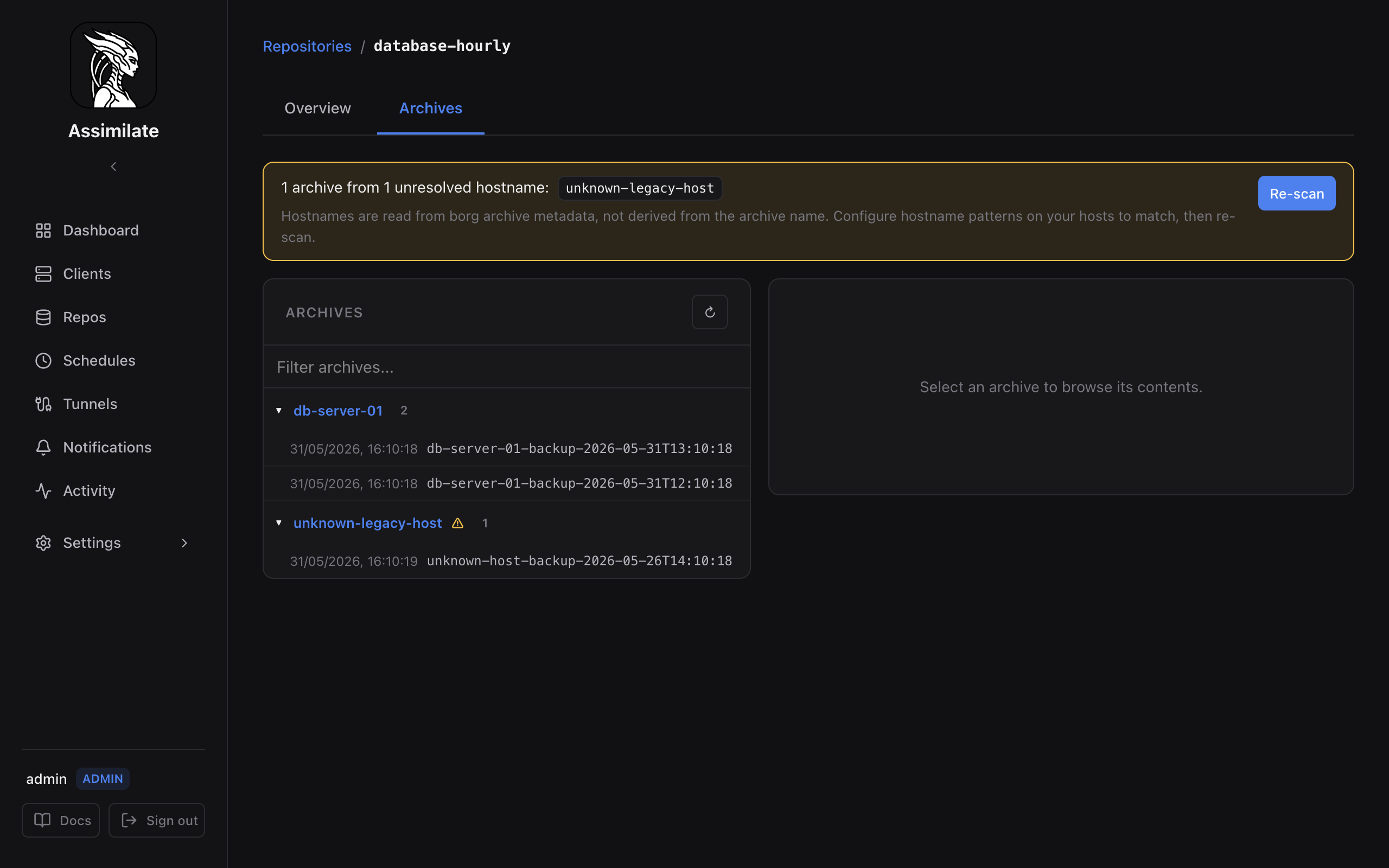
Navigate to Repos in the sidebar, select a repository, then open the Archives tab. The list shows every archive stored in that repository.
You can also browse archives per schedule: open a schedule's detail view and switch to the Backups tab (see Scheduling). This shows only the archives created by that specific schedule, with the same file browser panel for browsing and extraction.
All three places — the repository's Archives tab, a schedule's Backups tab, and the standalone Archives page — use the same archive selector and file browser, so the controls, the row layout and the available actions are identical wherever you reach them from.
Above the list are three controls:
| Control | What it does |
|---|---|
| Search | Narrows the list to archives whose name or host contains what you type |
| Sort | Orders by date, original size, or deduplicated size, ascending or descending |
| By host / Flat | Groups the archives under one header per host, or lists them flat |
In By host mode each group header carries the hostname, the number of archives it holds and their total original size, so a collapsed group still tells you something. The hostname itself is a link to that host's agent page; clicking anywhere else on the header collapses or expands the group. Groups start open; on a repository holding archives from more than three hosts they start collapsed instead, and you click a header to expand one.
Each row shows the archive name and its original size on the first line, then the host, the backup's start time and the deduplicated size underneath. The host is a link to that host's agent page, so you can jump to it without selecting the archive first. A host that borg recorded but no agent claims is marked with an amber stripe — see Re-scanning Unmatched Archives.
Click a row to open the archive in the file browser on the right. Administrators also get a delete button on every row; it is always visible, not revealed on hover.
Viewing a Single Archive
Links that point at one specific archive (for example from a host's backup history) open the Archives tab with an ?archive=<name> query parameter. In this mode the page shows only a Showing only <name> banner and the file browser for that archive — the archive list, search box, sort selector, and group toggle are hidden, since none of them apply to a single result.
Click Show all archives in the banner to clear the filter and return to the full list.
Archive Details
The header above the file list names the archive, its host and the repository it lives in, followed by its date and sizes. The repository matters whenever a schedule writes several copies: the same archive name exists in each of its target repositories, and Download, Restore and Delete in that header all act on the one named there. The repository name links to the repository itself.
The detail view shows statistics reported by borg info:
| Stat | Description |
|---|---|
| Original size | Total uncompressed size of all backed-up files |
| Compressed size | Size after compression |
| Deduplicated size | Actual new data written to the repository (after deduplication across all archives) |
| File count | Number of files included |
| Duration | Elapsed time from start to end |
| Start / End | Timestamps for the backup window |
The deduplicated size is typically much smaller than the original size because borg shares identical chunks across archives. This is the number that matters for storage capacity planning.
Browsing Archive Contents
Archives can be browsed from three places in the UI, all of them the same component:
Repositories page: From the archive list on a repository detail view, click an archive to open the file tree browser in the right panel.
Schedule detail page (Backups tab): For backup-type schedules, the Backups tab lists every archive produced by the schedule. Select an archive from the left panel to browse its contents in the right panel. This lets you find the most recent backup of a file without leaving the schedule view. Because it is the same selector, a schedule that targets several hosts groups its archives by host here too, and administrators can delete an archive from this tab. A schedule that writes into several repositories adds a Repository selector above the list, which scopes the whole pane — see Backups tab.
Archives page: The standalone Archives page adds a repository picker, the restore wizard and the archive diff above the same two panes.
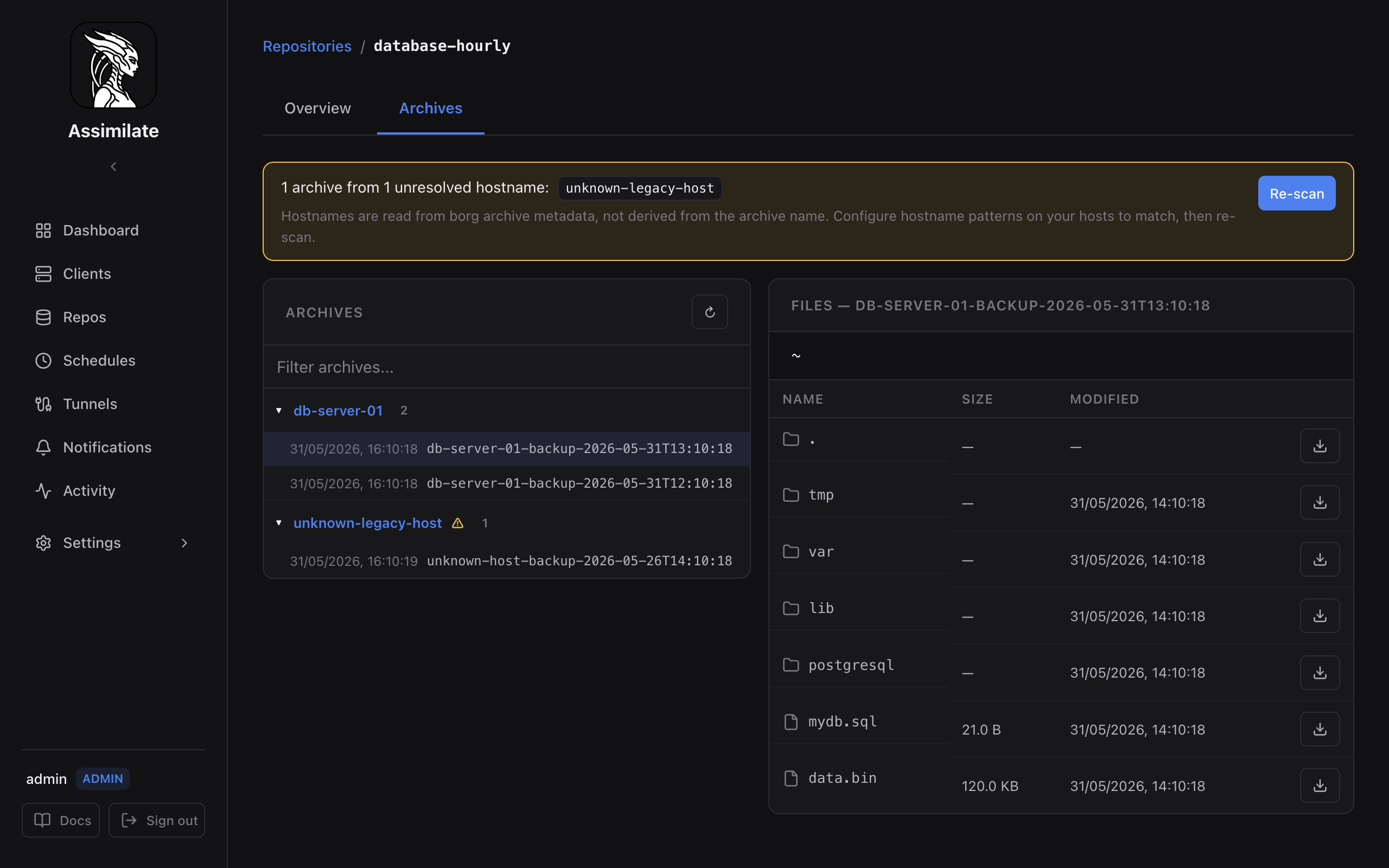
The browser starts at the repository root (/). Each entry shows:
- Type — file (
-) or directory (d) - Path — full path within the archive
- Size — file size in bytes
- Modified — last-modified timestamp
- Mode — Unix permission bits (e.g.
rwxr-xr-x)
Click a directory to navigate into it. Use the breadcrumb path at the top to jump back up the tree. The browser loads up to 100 entries per directory by default; very large directories may be truncated.
Drag a column's edge to resize it — useful on a narrow window, where the table scrolls horizontally rather than crushing the Name column down to a few characters.
The browser header names the archive and carries the actions that apply to the whole of it: Download, and for administrators Restore and Delete. Under it, a bar of chips reports the archive's host (a link to that host), its start time and both its original and deduplicated sizes.
Each table row has its own Download and, for administrators, Restore to host action. Restore writes the selected file or directory back to its original path on the archive's host. The . row is the directory you are currently looking at, so downloading or restoring it takes that whole subtree.
New archives from successful backup runs are recorded and indexed in the background immediately after the backup report is saved. Archives discovered later through repository sync are also queued for indexing. Older archives that have not been indexed yet are indexed on first browse.
Indexing never stays stuck in progress. If the server stops while an archive is queued or being indexed, the unfinished job is discarded when the server starts again, and the archive is re-indexed the next time it is browsed or synced. If indexing fails, the archive is marked as failed instead, and browsing it reads the contents directly from borg.
The index is stored one compressed record per directory rather than one row per file, which is how the browser reads it. This keeps the index small even for repositories with many archives of the same file tree — on a repository whose index had grown to 10 GB, the packed layout is roughly a quarter of the size. Directories with very large numbers of entries are split across several records so that a listing only reads the part it displays.
Indexes rebuild after upgrading
The content index is derived data, so upgrading to a release that changes its storage layout discards the existing index instead of converting it. Archives are re-indexed automatically the next time they are browsed, or through Sync now. Nothing else is lost: archive tags, backup reports, and the archives themselves are unaffected.
Extracting Files
To download a file from an archive:
- Browse to the file in the archive contents view.
- Click the Download icon next to the file.
- The server streams the file directly from borg and your browser saves it with the original filename.
If borg fails before it has sent much of the file (wrong passphrase, repository locked, archive or path not found, SSH connection refused), the download fails with borg's error instead of starting. If borg fails partway through, for example because the SSH connection drops, the server breaks off the transfer. The browser then reports the download as failed instead of saving a truncated or empty file that looks complete.
To download the whole archive as tar.lz4, click Download in the browser header. To restore a file or directory in place, click Restore to host on its row; to restore the whole archive, use Restore in the header. Both ask for confirmation first.
Administrators can permanently remove an archive from either Delete in the browser header or the delete button on its row in the archive list. Both open the same confirmation and delete the borg archive itself, the imported report, and any archive tags.
The borg delete runs in the background on the server so the UI is never blocked while it works. The repository detail page shows a Deleting archive indicator while the operation is in progress, and the archive disappears from the list once borg finishes. If the deletion fails, the archive remains in the list and a archive_delete_failed system event records the reason.
All server-side borg operations for a repository (backup, sync, content indexing, and archive deletion) run sequentially through a per-repository queue, so they never contend for the borg repository lock. Deleting several archives at once no longer returns a conflict — each deletion is queued and runs in turn, and the indicator shows how many operations are waiting (for example, Deleting archive (+3 queued)). Once the deletion queue drains, the archive list and the repository's total archive count are reconciled from borg (without re-reading file contents), so the count stays accurate.
Deleting an archive only unlinks it from the repository's manifest — the segment data it referenced is not reclaimed until the repository is compacted. Assimilate automatically runs borg compact after each successful archive deletion to reclaim that space, shown as a Compacting repository indicator. If the compact itself fails, the deletion still stands — the failure is logged as an archive_compact_failed system event and the freed space is reclaimed on the next opportunity (for example, a scheduled backup's own compact step).
To pull in new archives and index their contents, use Sync now (admin only), which re-reads the repository from borg and indexes any archives that are not already indexed.
Restores overwrite files
Restoring writes directly to the original filesystem location on the matched host. Existing files may be overwritten without another prompt from borg.
The download uses the correct Content-Type for common file types (text, images, JSON, etc.) and falls back to application/octet-stream for unknown extensions.
Large file extractions
Extraction streams data live from the borg repository over SSH and is not time-limited by the server. Downloading very large files (multi-GB) will hold an SSH connection open for the duration of the transfer. For large restores, consider running borg extract directly on the agent machine or repository host.
Only users with the extract permission on the repository can download files. Users with view-only access can browse archive contents but cannot download.
Archive Naming
Borg names archives using a timestamp prefix by default. Assimilate passes the archive name to borg at backup time using the format:
{hostname}-{schedule_type}-{YYYY-MM-DDTHH:MM:SS}
For example: webserver-backup-2024-03-15T02:00:01
The hostname comes from the agent machine. The schedule type is backup, check, or verify. You cannot rename archives after they are created — borg does not support in-place rename.
To use a custom prefix, configure the archive prefix in the repository's schedule settings. See Scheduling for details.
File Search
Assimilate can search for files by name within a single archive or across all archives in a repository.
Search Within an Archive
From the archive detail view, click Search and enter a file name or glob pattern (e.g. *.log, config.yaml). The results list matching paths with their size and modification time.
Cross-Archive Search
From the repository's Archives tab, click Search All Archives. Enter a file name or glob pattern. The results show every archive that contains a matching path, allowing you to locate which backup snapshot holds a particular file version.
Tip
Cross-archive search scans the index for each archive and may take a few seconds on repositories with many archives. The search is read-only and does not extract file data.
Archive Diff
Compare two archives to see what changed between backup runs.
- On the repository's Archives tab, select two archives using the checkboxes.
- Click Diff.
- The diff view lists every path that was added, removed, or modified between the two archives.
Each row in the diff shows:
| Column | Description |
|---|---|
| Status | added, removed, or modified |
| Path | Full path within the archive |
| Old size | File size in the older archive (blank for added files) |
| New size | File size in the newer archive (blank for removed files) |
Note
The diff compares path-level metadata. It does not show line-level content differences for text files.
Exporting as tar.lz4
To download an entire archive or a subtree as a compressed tar archive:
- Open the archive detail view.
- Click Export.
- Optionally specify a sub-path to export only part of the archive tree.
- Click Download tar.lz4. The server pipes
borg export-taroutput through lz4 compression and streams it to your browser.
Large exports
Exporting a full archive streams all data live from the borg repository and is not time-limited by the server. Exports of large archives (multi-GB) may take several minutes. For very large restores, run borg export-tar directly on the agent machine.
If borg fails before the export produces much output (wrong passphrase, repository locked, archive or path not found), the download fails with borg's error instead of starting. If borg fails partway through, the server breaks off the transfer. The browser then reports the download as failed instead of saving a truncated file that looks complete.
The exported file is named <archive-name>.tar.lz4. You can decompress it with:
lz4 -d <archive-name>.tar.lz4 | tar -x
Archive Tags
Tags are short labels you can attach to archives to mark significant snapshots (e.g. pre-upgrade, weekly-baseline, release-1.2).
Adding Tags
From the archive detail view, click Edit Tags and enter one or more comma-separated tags. Tags are stored as archive metadata and persist across retention-policy runs — tagged archives are never pruned automatically.
Warning
Pinned archives consume repository space indefinitely. Remove tags from archives you no longer need to retain.
Filtering by Tag
On the repository's Archives tab, use the Tag filter dropdown to show only archives with a specific tag. This is useful for locating baseline snapshots among a long list of daily archives.
Removing Tags
Open the archive detail view, click Edit Tags, remove the desired tag, and save. Once all tags are removed the archive is subject to normal retention-policy pruning on the next backup run.
Pruning Archives
Old archives are removed automatically after each successful backup run according to the retention policy configured on the schedule. The policy controls how many daily, weekly, monthly, and yearly archives to keep.
Retention settings are per-schedule. See Scheduling for how to configure keep_daily, keep_weekly, keep_monthly, and keep_yearly.
Manual pruning through the UI is not available. To prune outside of the normal schedule, run borg prune directly on the repository host or trigger a backup run (which includes pruning) from the Repositories page.
Archive Integrity
Borg uses content-addressed, deduplicated chunk storage. Every chunk is identified by a cryptographic hash (BLAKE2b or SHA-256 depending on the encryption mode). This means:
- Deduplication is automatic — identical data across archives is stored once.
- Corruption is detectable — borg verifies chunk hashes on read. A corrupted chunk causes an error rather than silently returning bad data.
To actively verify repository integrity, run a Check schedule (see Scheduling). A check reads all chunks and verifies their hashes without extracting files.
If the repository is corrupted beyond what borg can repair, the affected archives may become unreadable. Assimilate surfaces borg error output in the backup report. For recovery options, refer to the BorgBackup documentation.