Repository Management
A repository is a borg backup destination — an SSH-accessible path where archives are stored. Each repository has its own encryption passphrase, compression settings, and access controls.
SSH Setup Prerequisites
Assimilate connects to borg repositories over SSH using the server's Ed25519 key pair. Before creating a repository, the server's public key must be authorized on the repository host.
View the server's public key under System in the admin UI, or retrieve it via:
ssh-add -L
Add the key to ~/.ssh/authorized_keys on the borg repository host:
echo "<server-public-key>" >> ~/.ssh/authorized_keys
For append-only access, use a command= restriction in authorized_keys:
command="borg serve --append-only --restrict-to-path /backup/repos",restrict ssh-ed25519 AAAA...
Once the key is in place, use the Test Connection button in the repository form to verify SSH connectivity and confirm that borg is installed on the remote host.
On the first successful borg connection, Assimilate records the repository host's SSH key against the repository and pins it to a dedicated, per-repository known_hosts file for all server-side borg operations. If the repository host's key later changes, syncs fail with a host-identification-changed error until an admin reviews the new key's fingerprint and accepts it from the repository's page.
For the full SSH agent forwarding setup — including Docker and systemd configurations — see SSH Agent Forwarding.
Creating a Repository
There are two paths for adding a repository:
| Path | When to use |
|---|---|
| Init new | The remote path does not yet exist — Assimilate runs borg init |
| Import existing | A borg repository already exists at the path — register it without reinitializing |
Both paths are available from Repositories → New Repository in the UI.
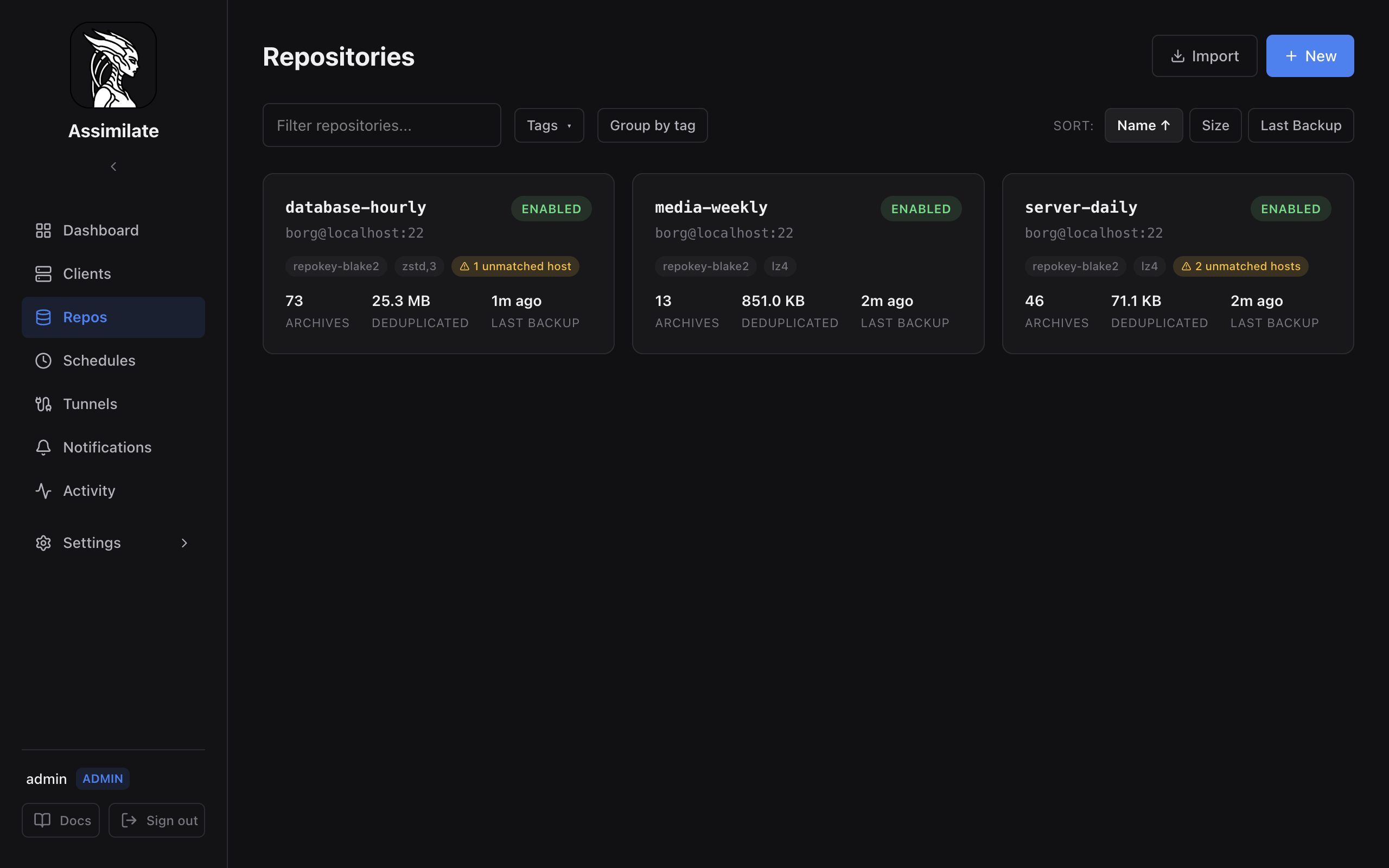
The Repositories list page shows all registered repositories with:
- Text filter — search by repository name
- Tag filter — filter by one or more tags
- Quota filter chips — narrow the list to At risk repositories (at or above their own warning threshold) or repositories with No quota configured; the All chip always shows the total count
- Group by tag — organize repositories into tag groups
- Group by host — organize repositories that share an SSH host under a shared storage pool (see Quota by Host below); this is the default view
- Sort buttons — sort by Name, Size, Last Backup, or Quota (utilization of each repository's own quota; repositories with no quota sort last). Sorting applies to the flat list — while grouped by host, each group orders its own repositories by size instead
Each repository card shows the name, SSH target, encryption type, compression algorithm, archive count, deduplicated size, and last backup time. A disabled repository tints the card and adds a Disabled pill; a repository with unmatched imported archives shows an N unmatched chip — click it to jump to the Archives tab. A repository with its own storage quota configured also shows a compact usage bar with its current size, threshold, and health.
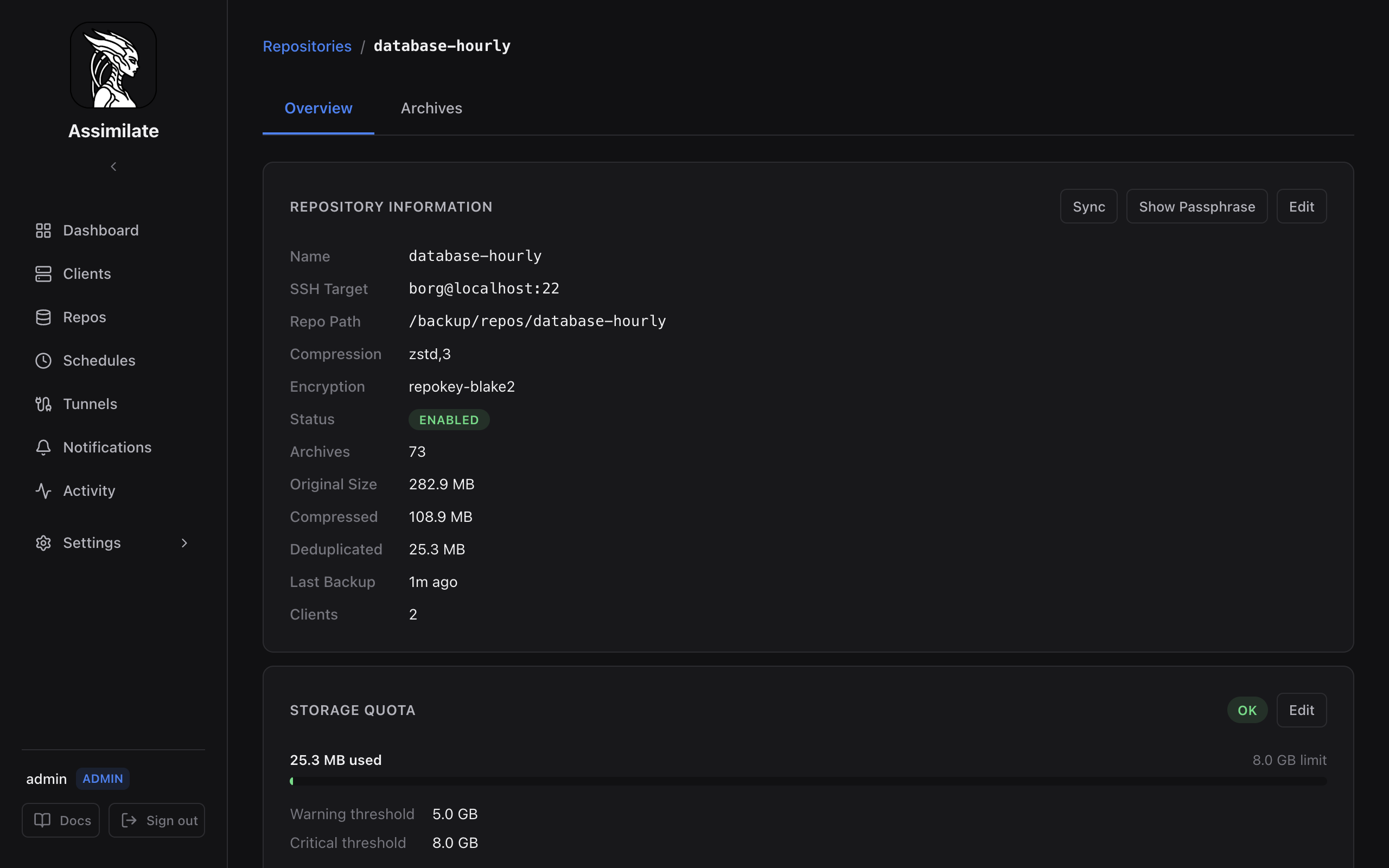
The repository detail page opens with a header naming the repository, its SSH target, its status and what it holds, with Sync now as its primary action and Show passphrase behind the overflow menu. Four tabs follow:
- Overview — archives, deduplicated and original size, last write and disk-sync cadence, plus the repository's schedules
- Archives — the archive list and the file browser
- Schedules — every schedule writing to this repository
- Settings — the repository's own connection fields, its storage quota, its tags, the borg console, and the danger zone (Confirm relocation, Break lock, Remove repository, Delete repository, Reset and re-import)
Break lock
Break lock clears a stale borg lock on the repository. It also detects and clears a
stale local cache lock left behind by a backup process that was crashed, OOM-killed, or
forcibly terminated (e.g. a killed container) — something plain borg break-lock does not
do, since it only ever clears the repository's own lock. Only use Break lock when you are
certain no backup is currently running against the repository; breaking a lock during an
active backup will corrupt it.
Init New Repository
Use this path when the remote directory is empty or does not exist yet.
- Enter the SSH connection details: host, user, port (default 22), and repository path.
- Use the Browse button to navigate the remote filesystem and select a path (see Folder Browser).
- Select an encryption type (see Encryption Types).
- Enter a passphrase. Choose a strong, unique passphrase — it cannot be recovered if lost.
- Optionally select a compression algorithm (see Compression).
- Click Initialize. The server runs
borg initon the remote host and registers the repository.
The borg output is shown after initialization. If the remote path already contains a borg repository, the server returns a conflict error — use Import Existing instead.
Import Existing Repository
Use this path when a borg repository already exists at the remote path and you want to register it in Assimilate without reinitializing.
- Enter the SSH connection details and the exact path to the existing repository.
- Enter the passphrase that was used when the repository was originally initialized.
- Click Save. The repository is registered and will appear in the repository list.
No borg init is run. The passphrase is stored encrypted at rest and used for all future backup and archive operations.
Import Progress
After saving, the server runs borg info and borg list in the background to sync existing archives. While this is in progress:
- The repository card shows an Importing spinner badge.
- The repository detail page shows an importing indicator.
- If the import fails (e.g. SSH timeout, wrong passphrase), the error is displayed on the repository card and detail page.
During a full repository sync, Assimilate also prunes archives that no longer exist in borg from the database. The scheduled disk sync uses the same full reimport path, so it refreshes the complete archive list instead of only adding new entries.
Full resync and content indexing
The Sync now action on the repository detail page re-reads every archive from borg and then builds the browsable content index (the file tree used for archive browsing, search, diff, and restore). Because borg archives are immutable:
- Archives whose content index is already complete are skipped — a resync never re-scans an archive it has already indexed.
- Stats are only re-fetched for archives that don't have them yet.
Indexing runs in the background and the repository badge shows live progress: the bar advances as each archive finishes (so it never sits at 100% while work remains), and the status line shows the archive currently being scanned together with a running file count and the file being processed, e.g. Indexing 'host-2026-06-10T02:00:00' (3/84) — 12,345 files · home/user/project/main.rs. You can navigate away — indexing continues and the UI updates automatically via WebSocket.
For large repositories with many archives, the initial import and first full index may take several minutes.
Archive-to-Host Matching
During import, each archive's hostname is resolved to a registered agent:
- Exact match — the archive hostname matches an agent's hostname directly.
- Pattern match — the hostname matches a glob pattern configured on an agent (see Agent Management — Hostname Aliases).
- Unmatched — a placeholder agent is created with an "(imported)" badge.
Unmatched archives can be resolved later by adding hostname patterns and running a re-scan.
Re-scanning Unmatched Archives
After adding hostname aliases to agents, you can re-scan a repository to match previously unmatched archives against the updated patterns.
- Open the repository detail page.
- Click Re-scan Archives (admin only).
- The server evaluates all unmatched archives against current hostname patterns.
- A toast shows how many archives were matched and how many remain unmatched.
- Placeholder agents with no remaining archives are automatically cleaned up.
Encryption Migration
Admins can migrate a repository to a different encryption mode (e.g. from repokey to repokey-blake2).
- Open the repository detail page.
- Click Migrate Encryption and select the target encryption mode.
- Click Confirm.
The server:
- Renames the existing repository to
<path>.migrated-<date>on the remote host. - Runs
borg initat the original path with the new encryption mode. - Updates the database record.
The old repository is preserved at the .migrated-* path and can be removed manually once you've confirmed the migration is successful. This operation is audit-logged.
Warning
Migration creates a new empty repository. Existing archives remain in the old (renamed) repository. You will need to run new backups to populate the migrated repository.
Folder Browser
The built-in folder browser lets you navigate the remote filesystem over SFTP to select a repository path without typing it manually.
Click the Browse button next to the repository path field. The browser connects to the SSH host using the server's key and lists directories. Navigate to the desired parent directory and either select an existing directory or type a new subdirectory name.
The selected path is written back into the repository path field.
The folder browser requires the SSH host and user fields to be filled in first.
Encryption Types
Assimilate supports all borg encryption modes. The encryption type is set at borg init time and cannot be changed afterwards.
| Mode | Description |
|---|---|
repokey |
Passphrase-protected key stored in the repository |
repokey-blake2 |
Same as repokey with BLAKE2b MAC — recommended |
keyfile |
Passphrase-protected key stored on the agent machine |
keyfile-blake2 |
Same as keyfile with BLAKE2b MAC |
authenticated |
No encryption, HMAC authentication only |
authenticated-blake2 |
No encryption, BLAKE2b authentication only |
none |
No encryption, no authentication |
Recommendation: Use repokey-blake2. It stores the key in the repository (no separate key file to manage), uses the faster and more secure BLAKE2b MAC, and is the most common choice for server-managed backups.
Avoid none for any data that should remain confidential. For details on borg encryption internals, see the BorgBackup documentation.
Compression
Compression is applied per-archive at backup time. It can be changed on an existing repository — the new setting applies to future archives only.
| Algorithm | Trade-off |
|---|---|
lz4 |
Very fast, low CPU, moderate ratio — default, good for most cases |
zstd (level 1–22) |
Balanced speed and ratio; level 3 is a good starting point |
zlib (level 1–9) |
Slower than lz4, similar ratio; legacy option |
none |
No compression — useful when data is already compressed (e.g., media files) |
For general-purpose backups, lz4 is the default and works well. Use zstd,3 when storage space is a priority and CPU overhead is acceptable.
Repository Tags
Tags are short labels that help organize repositories when managing many agents. A repository can have multiple tags.
Tags are set in the repository edit form and are visible in the repository list. They have no effect on backup behavior — they are purely organizational.
Quota by Host
The Repositories page groups repositories sharing an SSH host under one section by default — visually separated from other hosts by a shaded panel — so it's clear at a glance which repositories belong to which backup destination. Toggle Group by host off to switch back to a flat, sortable list.
Each section header shows a storage pool bar scaled to that host's server quota — when one is configured and you have admin access — with one segment per repository, sized to its share of the combined usage, and a mark at the server quota's warning threshold.
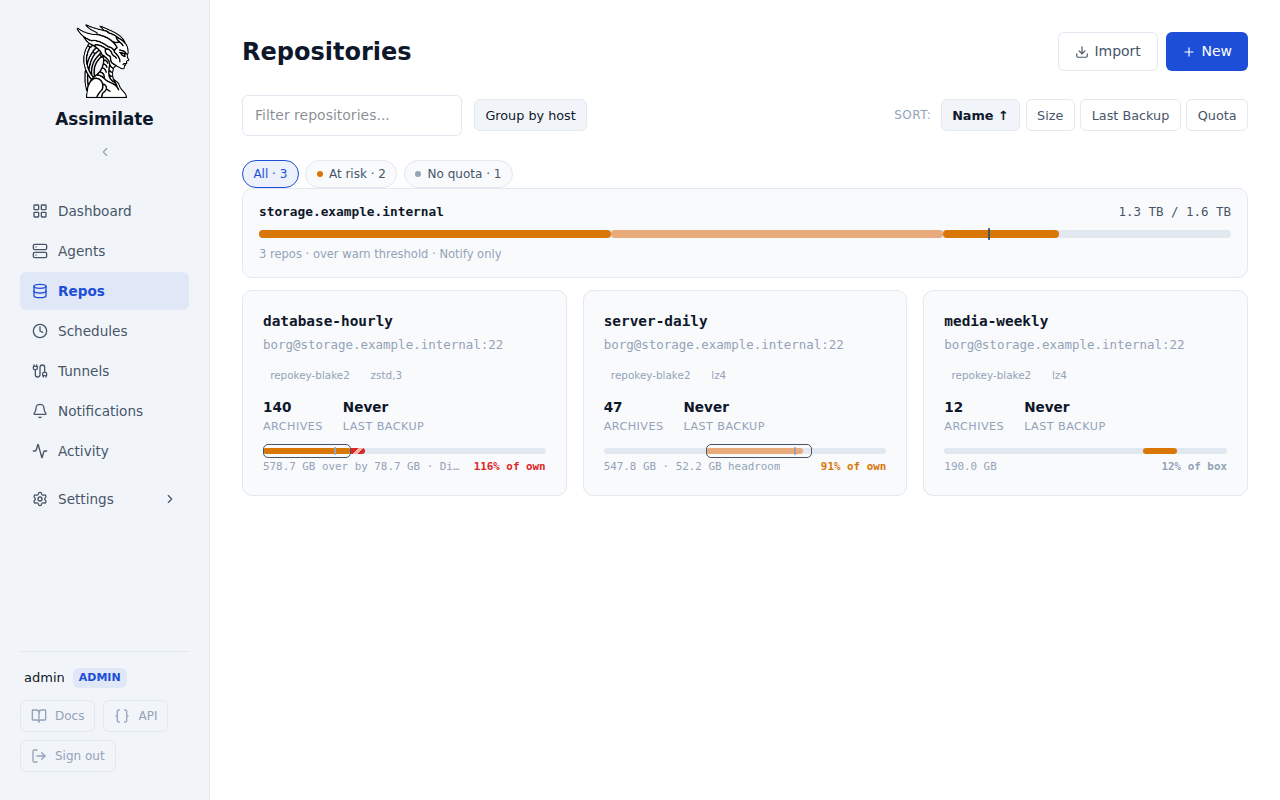
Inside a group, a repository without its own quota shows a usage bar on the same scale as the pool header, so its segment's position and width reflect its share of the host. A repository that has its own storage quota configured instead shows a usage bar on its own scale (current size, threshold, and health) — mixing the two scales in one bar made a repository's slice look almost full purely because of its position in the pool, which was confusing next to a "% of own quota" label describing a different number entirely.
Combining a quota filter chip with Group by host dims — rather than removes — repositories that don't match the filter, so the pool bar always reflects the host's true combined usage; the header notes how many of the group's repositories are currently shown.
A host with no configured server quota, or when viewing as a non-admin user, still groups its repositories together, but every card in that group falls back to showing its own quota (if any) on its own scale instead of the shared pool.
Passphrase Management
The passphrase is required by borg to encrypt and decrypt archives. Assimilate stores it encrypted at rest using AES-256-GCM, derived from the ASSIMILATE_SECRET_KEY environment variable.
Viewing the passphrase is restricted to admins. Navigate to the repository detail page and choose Show passphrase from the header’s overflow menu. The decrypted passphrase is fetched from the server and displayed once.
The passphrase is never logged or transmitted in plaintext. See Security for details on the encryption scheme.
Passphrase is irrecoverable
If you lose the passphrase, the repository contents are permanently inaccessible. Assimilate cannot recover it. Store the passphrase in a secure location (e.g., a password manager) independent of Assimilate.
If ASSIMILATE_SECRET_KEY is changed or lost, all stored passphrases become unreadable. Keep this value stable and back it up separately. See Configuration for details.
Editing and Deleting
Editing a repository updates its host, SSH user, path, compression, and enabled state. The passphrase and encryption type cannot be changed after initialization — borg does not support re-encrypting an existing repository.
The Host picker lists the known repository hosts; a host's port comes with it. Add a new host... takes a hostname and port no other repository uses yet. Moving a repository to another host takes that host's SSH host key, power and availability settings. To change a host itself — its hostname, port or key — edit it on the host's own page, which moves every repository on it.
Changing the host or path does not move or modify the remote repository. It only updates the connection details Assimilate uses to reach it.
Toggling Disk sync on schedules a periodic borg info/borg list resync of this repository, independent of any backup schedule, using the same cron expression and visual Cron Expression Builder that backup schedules use.
Repository Relocation Safety
When you change a repository's path, SSH host, or SSH port, borg needs to accept that the repository has moved. Assimilate handles this securely:
- On edit: The server marks the repository as "relocation pending."
- Next backup: The agent sets
BORG_RELOCATED_REPO_ACCESS_IS_OK=yesfor that single backup run, allowing borg to accept the new location. - After success: The relocation flag is cleared automatically. Subsequent backups no longer accept relocations.
This means borg will only accept a repository relocation once, immediately after an admin changes the connection details. If an attacker swaps the remote repository at any other time, borg will refuse to operate on it.
Note
No manual action is required. The relocation acceptance is automatic and one-shot. If the first backup after a path change fails for an unrelated reason, the flag remains set until a backup succeeds.
Deleting a repository removes it from Assimilate — the database record, stored passphrase, and associated schedules are deleted. The remote borg repository and its archives are not deleted. You must remove the remote data manually if desired.
Deletion requires admin privileges.
Power
Waking a powered-down machine, shutting it back down, and whether it is expected to be online are facts about the machine, so they are set on its repository host, once for every repository on it. The repository's Settings → Power pane shows its host's settings read-only, with Edit on host for admins, and lists the schedules currently waiting on this repository. See Power Management for the full behavior, and When the Host Is Offline for what an unreachable host means.
Repository Permissions
By default, repository visibility follows the owner model. Admins can grant per-user access to specific repositories using the permissions panel on the repository detail page.
| Permission | Effect |
|---|---|
can_view |
User can see the repository and its archives |
can_backup |
User can trigger manual backups |
can_modify_schedules |
User can create, edit, and delete backup schedules for this repository |
can_extract |
User can browse and extract files from archives |
can_delete |
User can delete archives |
Admins always have full access regardless of per-user permissions. For a broader overview of access control, see Security.