Notifications
Assimilate can notify you when backups succeed, fail, or produce warnings. Three delivery channels are supported — all self-hosted, no third-party services required:
| Channel | Use case |
|---|---|
| SMTP delivery to one or more addresses (STARTTLS, SSL/TLS, or plain) | |
| Webhook | HTTP POST to any URL — Slack, Discord, ntfy, Gotify, or your own endpoint |
| Web Push | Browser push notifications via the Web Push protocol (VAPID) |
Supported Events
| Event | Triggered when |
|---|---|
| Backup Success | A backup completes without errors or warnings |
| Backup Warning | A backup completes but borg reported warnings |
| Backup Failed | A backup fails — including an unreachable agent or repository host expected to always be online, and a catch-up abandoned after its host's give-up window |
| Check Success | A repository consistency check passes |
| Check Failed | A repository consistency check fails |
| Agent Connected | An agent establishes a WebSocket connection |
| Agent Disconnected | An agent drops its WebSocket connection |
| Schedule Auto Disabled | The scheduler disables a schedule after it reaches its missed backup threshold |
| Backup Skipped (Agent Offline) | A scheduled backup could not be started because its agent was offline, and that agent is marked as not always online |
| Backup Skipped (Repository Offline) | A backup failed and the host holding its repository is not answering SSH, for a repository marked as not always online (sent instead of Backup Failed) |
Channels
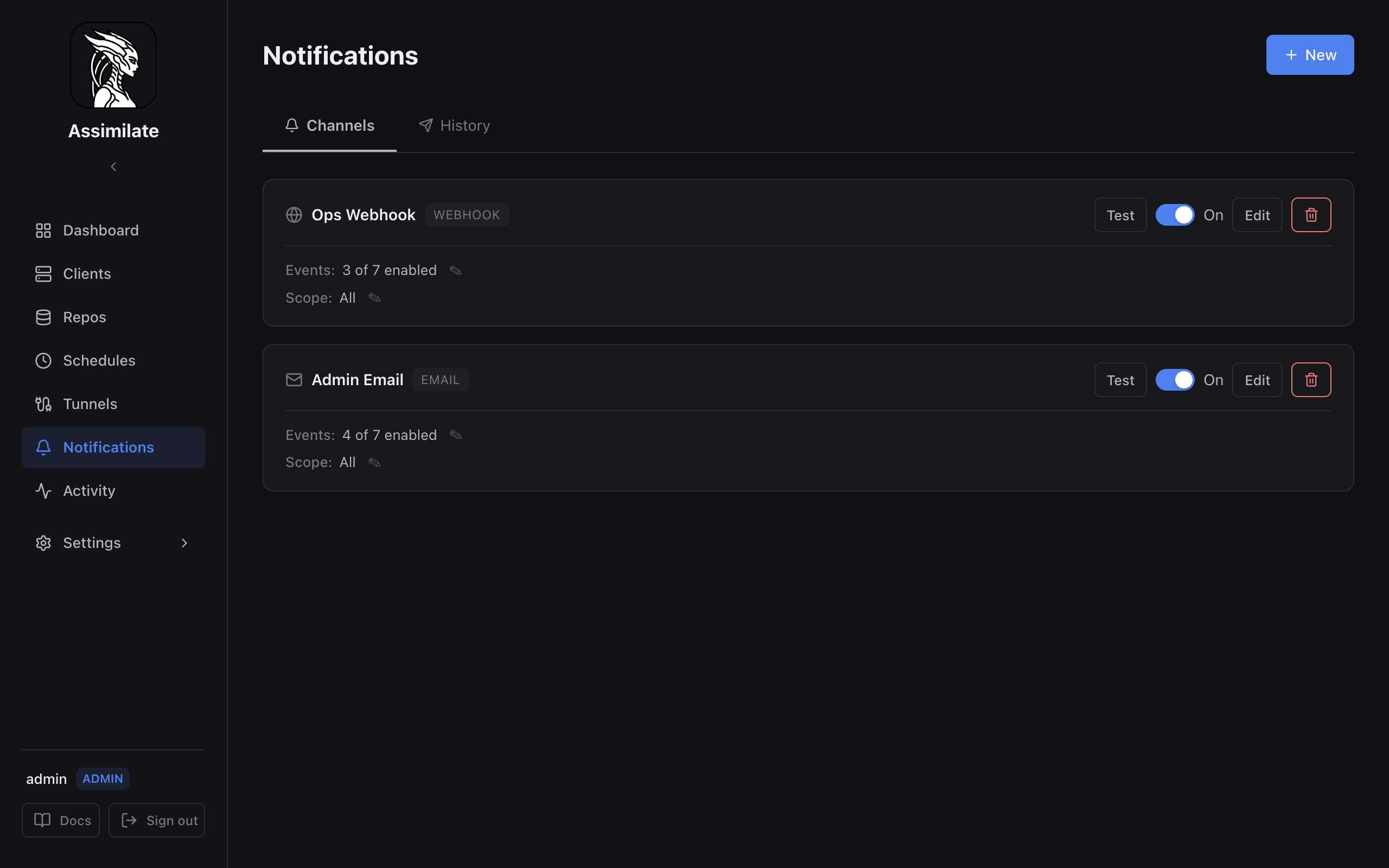
Navigate to Notifications in the sidebar to manage channels. Click the New button to add a channel.
Email (SMTP)
Configure your SMTP server details:
- SMTP Host — e.g.
smtp.gmail.com,mail.example.com - SMTP Port — 587 (STARTTLS), 465 (SSL/TLS), or 25 (plain)
- Security — STARTTLS (recommended), SSL/TLS, or None
- SMTP User / Password — credentials for authentication
- From Address — the sender address
- To Addresses — comma-separated list of recipients
Stored SMTP password
The SMTP password is encrypted at rest with AES-256-GCM, the same way as repository passphrases, and is decrypted only at the moment Assimilate logs in to your SMTP server. It is never sent back: the API and the Edit channel dialog only show whether a password is saved.
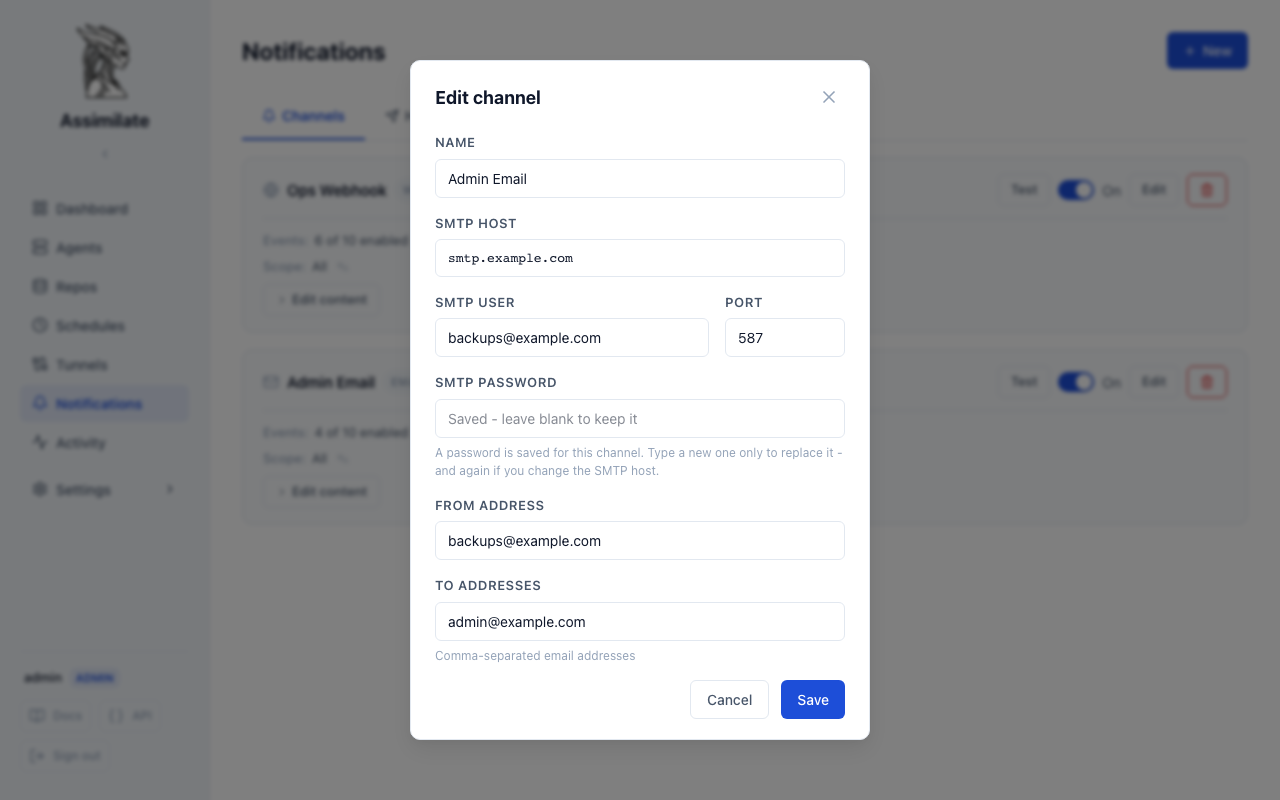
When you edit an email channel, the password field starts empty with the hint Saved - leave blank to keep it:
- Leave it empty to keep the saved password. Test Connection and Save both check the login with the saved password.
- Type a new password to replace it.
- If you change the SMTP host, the Port or the Security mode, type the password again. Assimilate does not send a saved password to a different server (or a different port on the same server) than the one it was entered for, and does not send it with weaker transport security than it was entered with.
Upgrading
Older versions stored the SMTP password in plaintext in the channel's configuration. The first time the server starts after the upgrade, it encrypts every such password and removes the plaintext copy. You don't need to re-enter anything.
The default subject identifies the event and host (e.g. Backup failed: web-server-01);
the body is a plain-text summary with the repository, schedule (and its next scheduled
run), archive, duration, size, files processed, any warnings, the error message on a
failure, and -- when public_url is configured -- a link to
the exact run in the Activity Log. On a successful backup, a Dedup: line always shows the
deduplicated ("new data") size, e.g. Dedup: 500.0 MiB -- see
Custom Content to change what's included.
Webhook
Send a JSON POST request to any URL when events fire:
- URL — the endpoint to POST to (e.g.
https://hooks.slack.com/services/...) - Headers — optional name/value pairs sent with every request (e.g.
Authorizationwith the valueBearer ...). Click + Add header for each one.
Stored header values
Every header value is treated as a secret, because it is usually an API token. Header values are encrypted at rest with AES-256-GCM, the same way as repository passphrases, and are decrypted only at the moment Assimilate sends the webhook request. They are never sent back: the API and the Edit channel dialog only show each header's name.
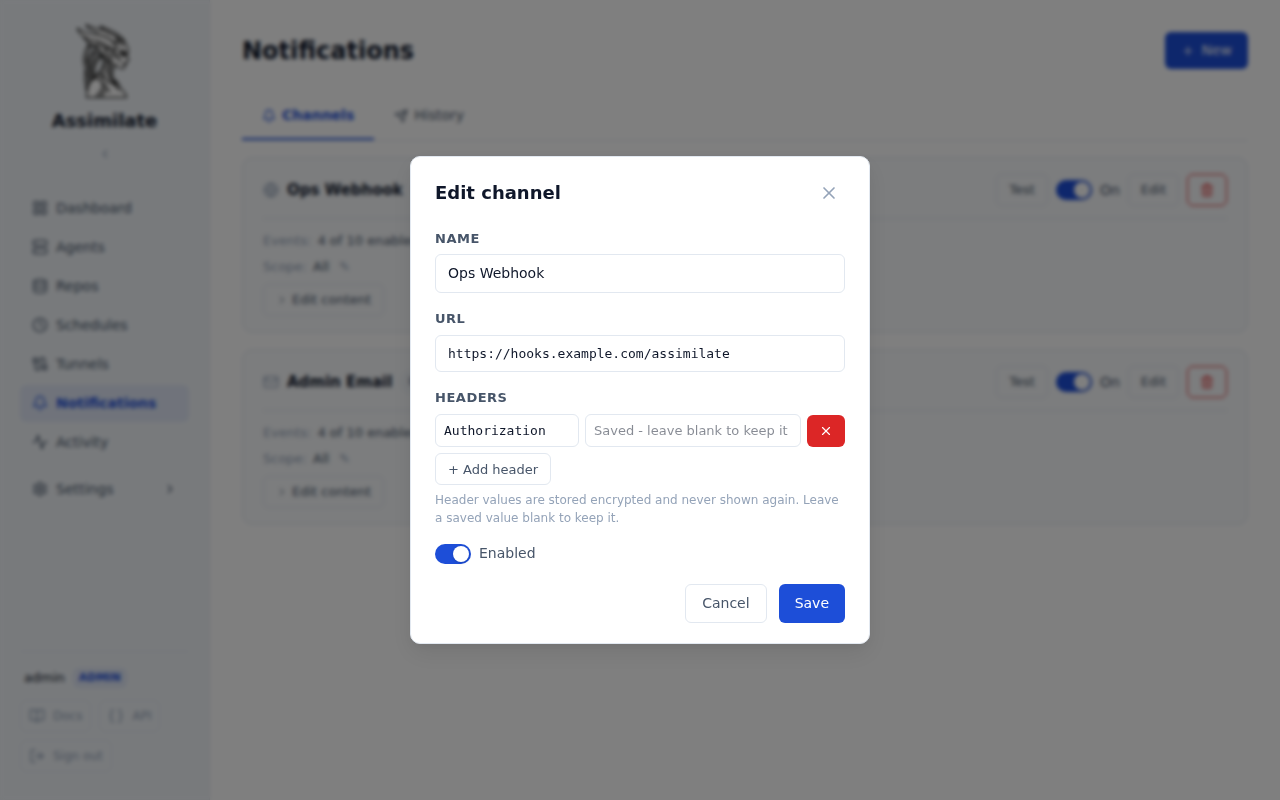
When you edit a webhook channel, each saved header is listed by name, with its value field empty and the hint Saved - leave blank to keep it:
- Leave a value empty to keep the saved value.
- Type a new value to replace it.
- Remove a header with its delete button, or add another with + Add header.
- If you change the URL to a different host (or a different scheme or port), type every saved value again. Assimilate does not send a saved header to a different server than the one it was entered for. The dialog names the headers it needs before you save. Changing only the path keeps the saved values.
Upgrading
Older versions stored header values in plaintext in the channel's configuration. The first time the server starts after the upgrade, it encrypts every such value and removes the plaintext copy. You don't need to re-enter anything.
The payload is a JSON object. Fields that don't apply to a given event (for example
duration_secs on an agent_connected event) are null:
{
  "event_type": "backup_failed",
  "hostname": "web-server-01",
  "repo_name": "daily-backup",
  "status": "failed",
  "error_message": "Repository lock could not be acquired",
  "timestamp": "2026-01-15T03:00:12Z",
  "schedule_id": 4,
  "schedule_name": "Nightly Server Backup",
  "archive_name": null,
  "run_id": "8f2e1a3c-6b7a-4e9a-9c2b-8f6a2e0b1c9d",
  "duration_secs": 10,
  "original_size": null,
  "compressed_size": null,
  "deduplicated_size": null,
  "files_processed": null,
  "warnings": [],
  "next_run_at": "2026-01-16T03:00:00Z",
  "activity_url": "https://backups.example.com/activity?category=backup&run_id=8f2e1a3c-6b7a-4e9a-9c2b-8f6a2e0b1c9d"
}
activity_url is only present when the public_url system setting
is configured -- see Activity Log Deep Links below. The raw
payload also carries a rendered title and message string alongside these fields, from
this channel's content template -- every channel gets one from the
moment it's created, so these fields are always present.
Web Push (Browser Notifications)
Browser push notifications appear even when the Assimilate tab is closed. They use the Web Push protocol with VAPID authentication — no Firebase or external push services needed.
When you create your first Web Push channel, the browser will prompt you to allow notifications. No separate subscription step is required.
Tapping a push notification opens the app to the most relevant page: a backup failure/warning opens the Activity Log filtered to that run (or the host, if the exact run isn't known), a schedule auto-disabled or backup-skipped event opens that schedule, a repository check failure opens the affected host's overview (checks aren't recorded in the Activity Log, so there's no run detail to link to), and everything else opens the affected host or repository.
Custom Content
Every channel has its own Title and Message template, shown on its card under Edit content -- expanding it never affects any other channel, and there's no separate toggle to switch on: the fields are always there, pre-filled with Assimilate's default content, ready to edit. Email and webhook channels start with the multi-line summary described above; Web Push channels start with a much shorter one-line default (repository and error message) instead, since a browser push toast has no room for a multi-line body.
Write plain text mixed with {{placeholder}} tokens:
| Placeholder | Value |
|---|---|
{{event}} |
Human-readable event label, e.g. Backup succeeded |
{{host}} |
Hostname |
{{repository}} |
Repository name |
{{status}} |
Raw status string |
{{schedule}} |
Schedule name |
{{next_run}} |
Next scheduled run |
{{archive}} |
Archive name |
{{duration}} |
Duration, e.g. 4m 32s |
{{original_size}} |
Uncompressed size, e.g. 10.0 GiB |
{{compressed_size}} |
Compressed size, e.g. 2.0 GiB |
{{dedup_size}} |
Deduplicated ("new data") size, e.g. 500.0 MiB |
{{files}} |
Files processed |
{{time}} |
Event timestamp |
{{warnings}} |
Warning messages, one per line |
{{error}} |
Error message |
{{activity_url}} |
Activity Log deep link, when configured |
A placeholder the current event doesn't carry (e.g. {{dedup_size}} on a check_failed
event) renders as an empty string; an unrecognized {{...}} token is left as-is, so a typo
stays visible in the delivered notification instead of silently disappearing. The Live
preview below the fields renders the template against a sample event -- switch it between
Backup succeeded/warning/failed and Agent connected to see how the template holds up when a
field is missing. Reset to default content restores the built-in title and message.
Email uses the template as its subject and body; a webhook channel adds it to the JSON
payload as title/message fields alongside the raw event data; a Web Push channel uses it
as the browser notification's title and body.
Activity Log Deep Links
A backup failure or warning notification links to the Activity Log so you
can go straight from the alert to the full run detail (duration, size, warnings, and the
exact error). Web Push notifications build this link automatically -- as precisely as
run_id allows, or by host otherwise -- since the browser resolves it against its own
origin. Repository check failures don't get this link: a check run isn't persisted anywhere
the Activity Log reads from, so those notifications link to the host overview instead.
Email and webhook notifications are delivered outside the browser, so they need to know the
server's externally-reachable address to build a clickable link. Set it once via the
public_url system setting:
curl -s -X PUT http://localhost:8080/api/system/settings \
  -H "cookie: session=<admin-session>" \
  -H "content-type: application/json" \
  -d '{"retention_days": 7, "public_url": "https://backups.example.com"}'
Until public_url is configured, email and webhook notifications omit the link (everything
else in this page still applies) -- Web Push is unaffected either way.
Channel Scope
By default, a channel fires for all events system-wide. You can restrict a channel to specific repositories, hosts, or schedules using the Scope section on each channel card.
- Click the Scope toggle on a channel card to expand scope options.
- Select one or more Repositories, Agents, or Schedules to narrow the channel's scope.
- Only events matching the selected scope will be delivered through that channel.
- Leaving a scope category empty means "all" — no filtering for that dimension.
Tip
Scope is set per channel, not per rule. If you need different scoping for different event types, create separate channels.
Example
A webhook channel scoped to the repository server-backup and the agent web-01 will only fire when backup events occur for that specific agent/repository combination. Agent connect/disconnect events will still fire if the agent matches the agent scope.
Rules
Each channel can have multiple rules that determine which events trigger it. When adding rules, you can select multiple event types at once.
Rules can optionally be scoped to:
- A specific repository — only events from that repo trigger the rule
- A specific agent — only events from that agent trigger the rule
- A specific schedule — only events from that schedule trigger the rule
If no scope is set on a rule, the rule matches all events (subject to channel-level scope).
VAPID Keys (Web Push)
Web Push requires a VAPID key pair for authenticating push messages. Assimilate auto-generates a VAPID key pair on first startup and stores it in the database — no manual configuration is required.
Viewing the VAPID Public Key
The VAPID public key is available at:
GET /api/notifications/push/vapid-key
This returns { "key": "<base64url>", "configured": true }.
Custom VAPID Keys
If you need to use your own VAPID keys (e.g. migrating from another server), you can set them via the API:
PUT /api/notifications/push/vapid-key
Content-Type: application/json

{
  "public_key": "<base64url-encoded public key>",
  "private_key": "<base64url-encoded private key>"
}
You can generate a key pair with:
npx web-push generate-vapid-keys
Warning
Changing VAPID keys invalidates all existing browser push subscriptions. Users will need to re-create their Web Push channels to re-subscribe.
Docker
No special volume mounts or environment variables are needed. VAPID keys are stored in the database and persist across container restarts automatically.
Testing
Each channel has a Test button that sends a sample notification to verify your configuration is correct. Check the History tab to see delivery status and error messages for recent notifications.
Delivery History
The History tab shows the last 50 notification deliveries with:
- Channel name and event type
- Delivery status (sent / failed)
- Error message (if failed)
- Timestamp
Click a row to expand it and see the full error message and the raw event payload that was sent to the channel — useful when an error message is too long to read in the table, or when you need to see exactly which fields (hostname, repo, archive name, etc.) were included in the notification. On narrow screens the table switches to a stacked card layout instead of scrolling horizontally, so long error messages and payloads wrap in place.
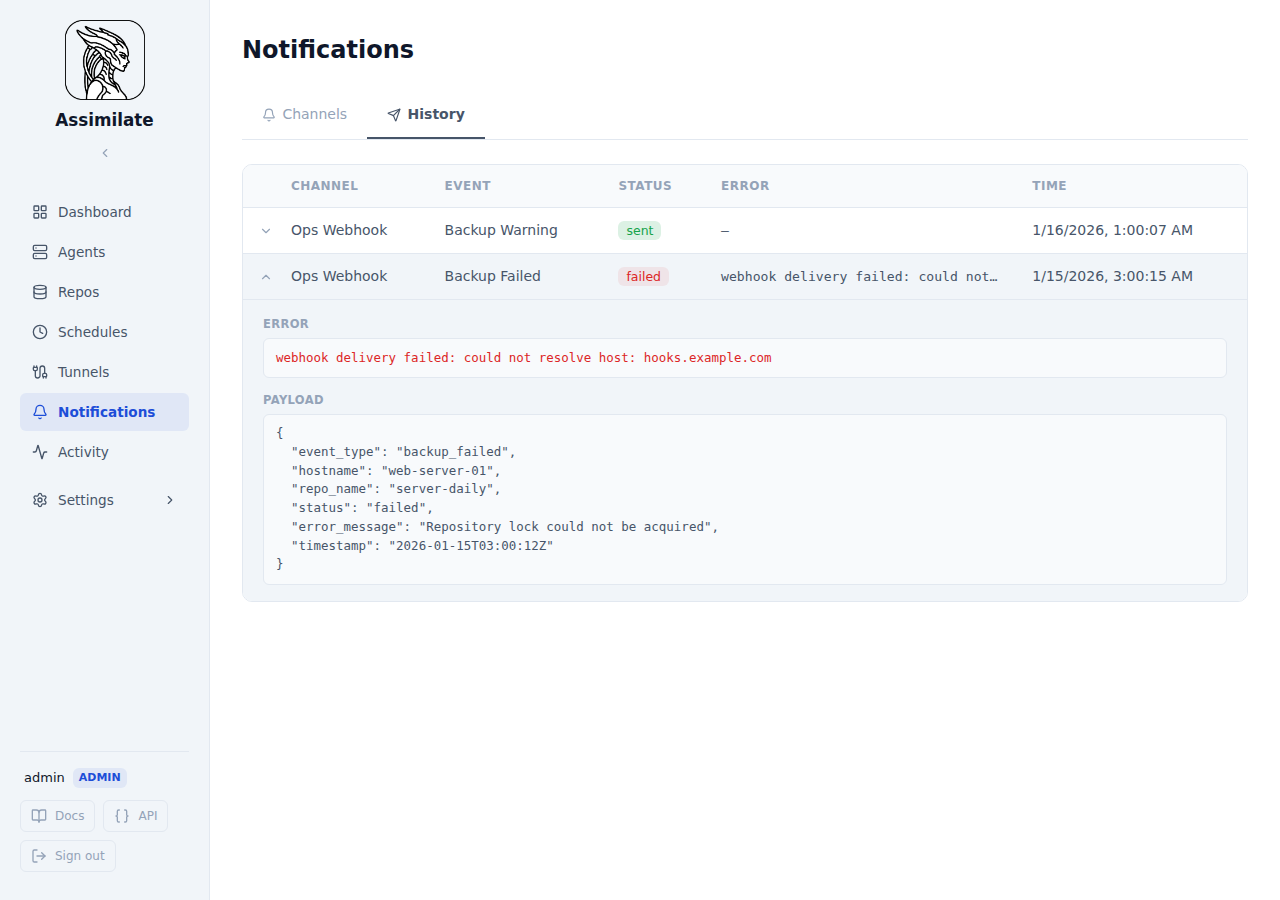
Failed deliveries are logged but not retried automatically. Fix the channel configuration and use the Test button to verify.