Restoring Files
Assimilate supports two restore paths: downloading files directly to your browser, or restoring files to the agent machine's filesystem. Choose based on the destination you need.
Prerequisites
- The target repository must be accessible (agent connected or repository reachable via SSH).
- You need the extract permission on the repository.
Browser Download
Use browser download to retrieve individual files or a directory tree directly to your local machine.
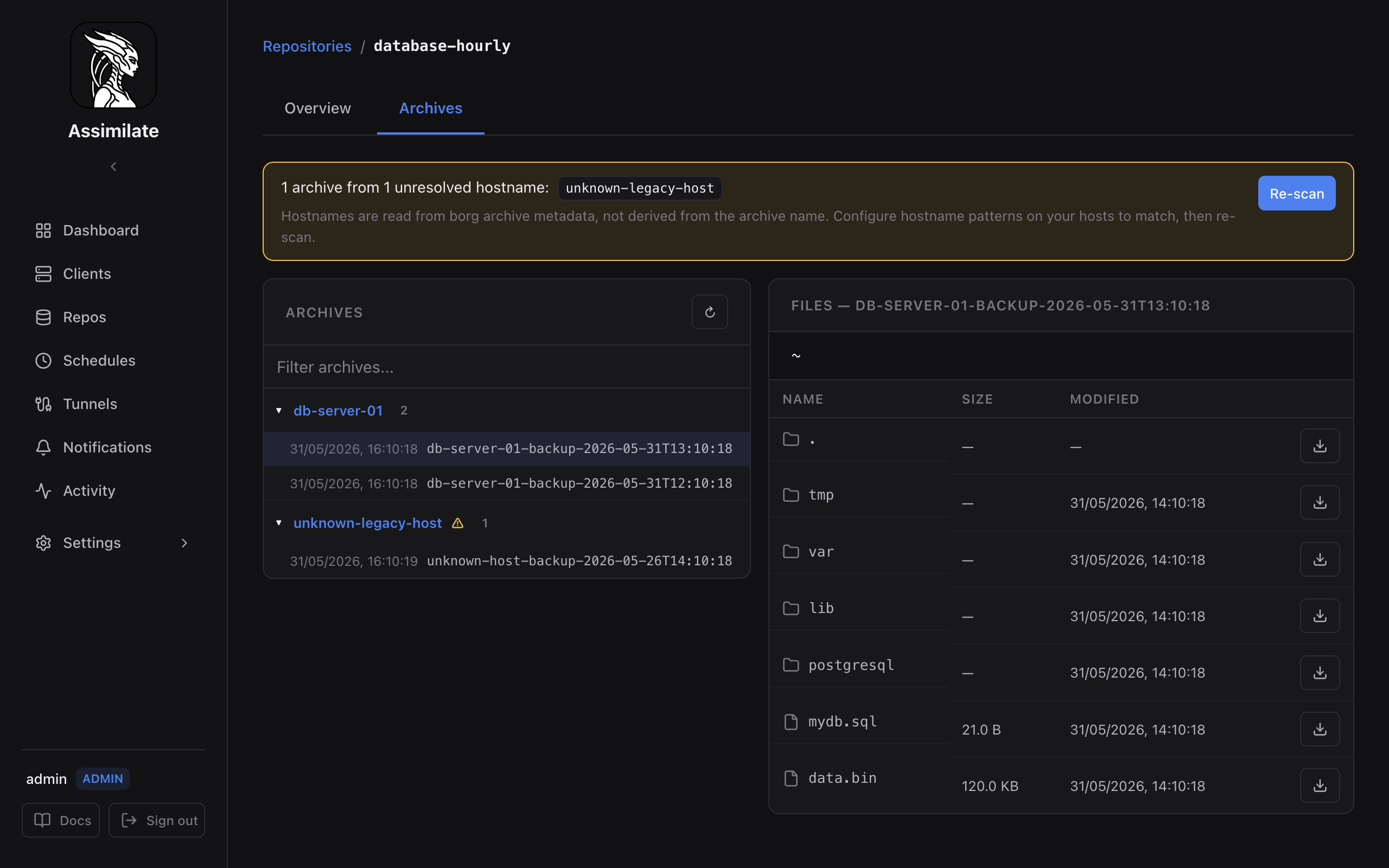
- Navigate to Repos, select a repository, and open the Archives tab.
- Click the archive you want to restore from.
- Navigate to the file or directory you want.
- Click Download to save it locally, or Restore to host to restore it directly to its original location.
- Use the actions on the root
.row to download or restore the whole archive.
The server streams data live from the borg repository. For details on the export format, see Exporting as tar.lz4.
Large downloads
Large downloads stream data live over SSH and are not time-limited by the server. For multi-GB restores, agent-side restore avoids holding a browser connection open for the duration of the transfer. When downloading through the restore wizard's Download to browser option, a Cancel Download button is shown while the transfer is in progress; cancelling stops the transfer and the underlying borg process on the server immediately.
Virtual Machines
A staged virtual machine is restored in two stages: the file restore below puts its directory back on disk, then the agent merges the increment chain and defines the domain. Both stages are driven from the agent's Virtual machines section - see VM Snapshots.
Agent-Side Restore
Agent-side restore extracts files directly on the agent machine — no data passes through the Assimilate server or your browser. This is the right approach for large restores or when the destination is the agent's own filesystem.
Navigate to the archive browser and click Restore to host beside a file or directory. Confirm the operation to extract it to its original location. Use the root . row to restore the whole archive.
Restore Status
While the restore runs, the detail view shows a live progress indicator. On completion the view reports:
- Exit code from
borg extract - Number of files extracted
- Any warnings or errors from borg output
Note
The agent must be connected when you trigger a restore. If the agent is offline, the restore request is queued and delivered when the agent reconnects.
Overwriting Existing Files
By default, borg extract overwrites existing files at the target path. Ensure the target path is correct before starting — there is no undo.
Data loss risk
Restoring to a non-empty directory will overwrite existing files without prompting. Set the target path to an empty staging directory if you want to inspect files before replacing production data.
Restore Flow
sequenceDiagram
    participant User
    participant Server
    participant Agent
    participant Borg

    User->>Server: POST /api/repos/{repo_id}/archives/{archive_name}/restore
    Server->>Agent: RestoreFiles (WebSocket)
    Agent->>Borg: borg extract <archive> <path>
    Borg-->>Agent: exit code + stats
    Agent->>Server: RestoreCompleted (WebSocket)
    Server->>User: restore complete notification
Related Pages
- Archive Browsing & Extraction — browse archive contents and download individual files
- Scheduling & Retention — configure backup schedules and retention policies
- Agent Management — manage connected agents